

Best Parallels Desktop Alternatives for Mac: Run Windows Software Without the Premium Price
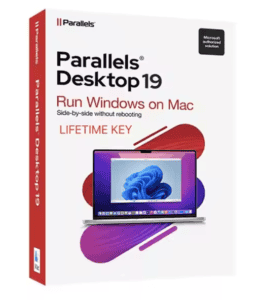
Looking for Parallels Desktop alternatives for Mac that won’t drain your wallet every single year? You’re not alone. Thousands of Mac users need Windows software for work, but paying $129/year for Parallels feels like highway robbery when you just need to run one or two applications. The good news? There are legitimate alternatives that get the job done without the premium subscription price tag.
Why Mac Users Are Searching for Parallels Alternatives
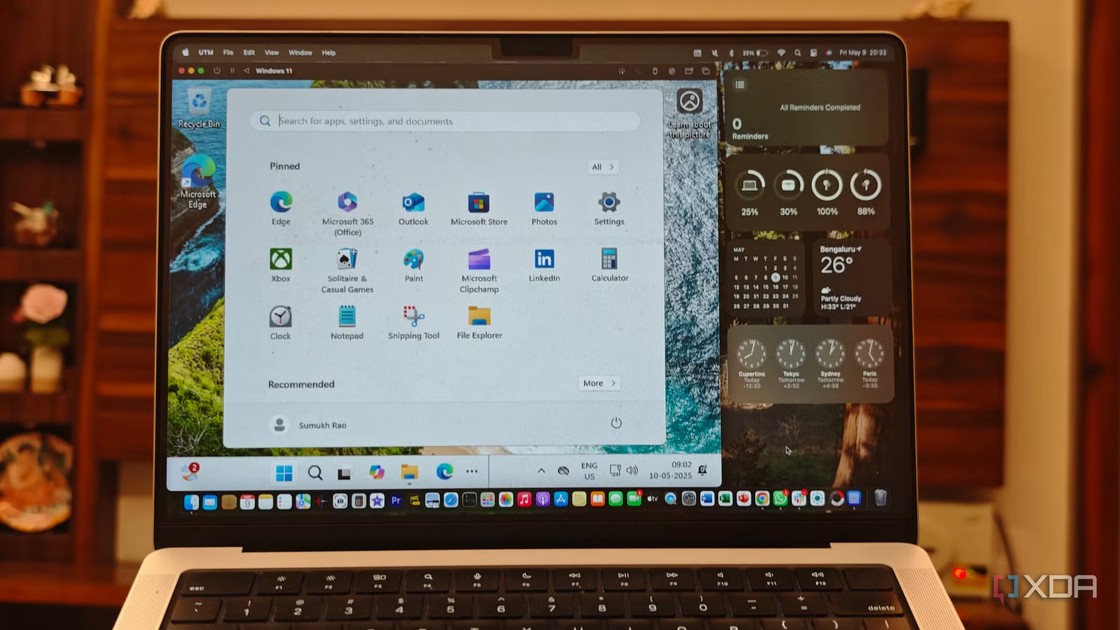
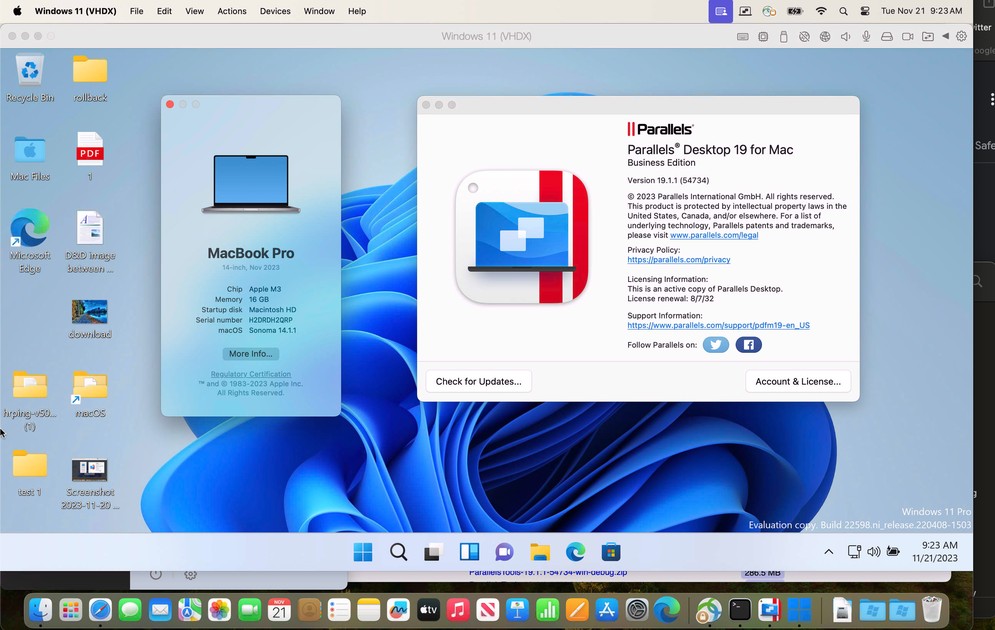
Let’s be honest about what’s happening here. Parallels Desktop is excellent software: it runs Windows on Mac seamlessly, with impressive performance and great integration features.
But here’s the thing: the pricing model has become a sticking point for many users. At $129.99 per year for the Pro edition (or $99.99/year for Standard), you’re looking at a recurring expense that adds up fast.
After three years, you’ve spent nearly $400 just to run Windows software on your Mac. That’s more than the cost of many perpetual software licenses.
Many professionals simply want to run Windows-only business applications: accounting software, legacy programs, or specialized tools that haven’t been ported to macOS. They don’t need all the bells and whistles. They need reliability and value.
The Best Free Parallels Alternatives for Mac
If you’re specifically searching for free Parallels alternatives Mac users can rely on, you’ve got several solid options. Let’s break them down by what actually works in real-world scenarios.
UTM: The Best Free Option for Apple Silicon Macs
UTM has become the go-to free virtualization solution for M1, M2, and M3 Mac users. It’s built specifically for Apple Silicon and uses the same underlying technology (QEMU) that powers enterprise virtualization tools.
The interface is clean and Mac-native. You won’t feel like you’re using some clunky open-source project thrown together by hobbyists.
Performance on Apple Silicon is surprisingly good, not quite Parallels-level, but absolutely usable for productivity applications. It runs Windows 11 for ARM smoothly, and you can even emulate x86 Windows (though that’s slower).
VirtualBox: The Classic Free Option (With Caveats)
Oracle’s VirtualBox has been the default free virtualization tool for over a decade. It works on Intel Macs and technically functions, but there’s a significant catch.
VirtualBox doesn’t support Apple Silicon natively. If you have an M1, M2, or M3 Mac, this option is essentially off the table.
For older Intel-based Macs, VirtualBox remains a viable free alternative. Performance won’t match Parallels, but it handles basic Windows tasks without issues.
VMware Fusion vs Parallels: The Premium Showdown
When comparing VMware Fusion vs Parallels, you’re looking at the two heavyweight champions of Mac virtualization. Both deliver excellent performance, but their business models have diverged significantly.
Here’s the critical difference that changes everything: VMware Fusion has a free tier called Fusion Player (now just “Fusion” for personal use). If you’re using it for non-commercial purposes, you pay nothing.
VMware Fusion Free (Personal Use)
VMware now offers Fusion completely free for personal use. You register for a Broadcom account, download the software, and you’re running Windows on your Mac without spending a cent.
This is a legitimate, full-featured virtualization tool, not some stripped-down trial version. It runs Windows 11 on Apple Silicon Macs with native ARM support.
VMware Fusion Pro (Commercial)
For business use, VMware Fusion Pro runs $199 as a perpetual license. That’s a one-time purchase, no annual renewals required.
Compare that to Parallels Pro at $129.99/year, and the math becomes clear. After two years, VMware Fusion Pro has paid for itself.
How to Run Windows on Mac Without Parallels: Step-by-Step Options
Let’s get practical. If you want to run Windows on Mac without Parallels, here are the actual methods that work, ranked by ease of use and cost-effectiveness.
Choose Your Virtualization Method
- VMware Fusion (Free): Best for personal use on any Mac, including Apple Silicon. Download from Broadcom after free registration.
- UTM (Free): Excellent Apple Silicon support, open-source, Mac-native interface.
- CrossOver ($74 one-time): Not virtualization, but runs many Windows apps without needing Windows at all.
Get Your Windows License
- Download Windows 11 ARM: For Apple Silicon Macs, you’ll need the ARM version from Microsoft’s Insider Preview program.
- Obtain a genuine license key: Windows works without activation but has limitations. A legitimate key removes watermarks and unlocks all features.
- Consider Windows 10: For Intel Macs, standard Windows 10/11 ISOs work perfectly through virtualization.
Install Your Windows Applications
- Launch your virtual machine: Boot into Windows through your chosen virtualization software.
- Install Windows-only software: Your Windows environment works like any PC. Install applications normally.
- Configure shared folders: Set up file sharing between macOS and Windows for seamless workflow.
CrossOver: Run Windows Apps Without Windows Itself
Here’s an approach most Mac users don’t consider: what if you could run Windows applications without installing Windows at all?
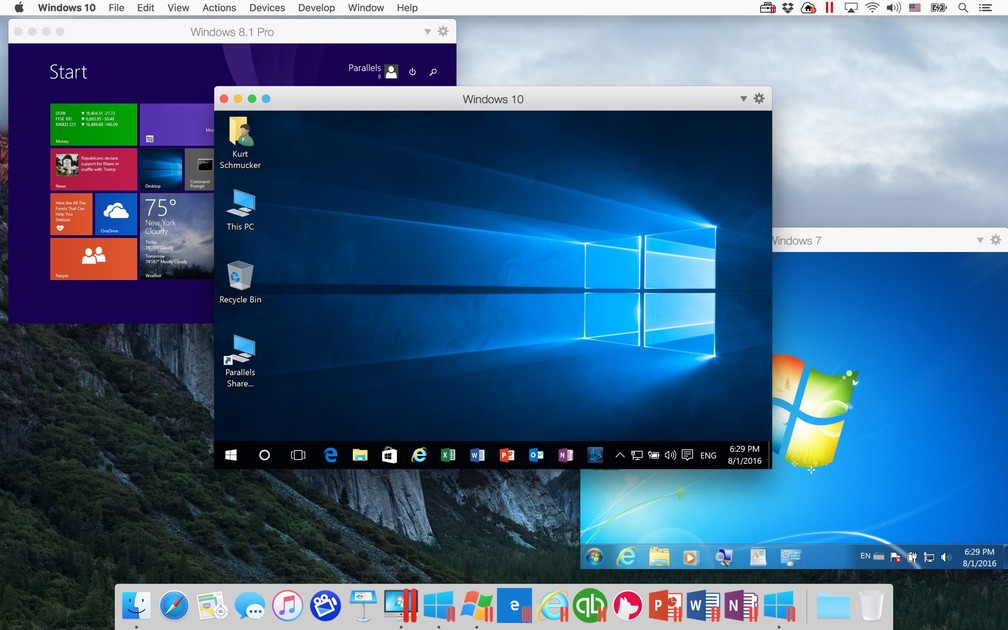
CrossOver by CodeWeavers does exactly that. It translates Windows API calls into macOS commands, allowing many Windows programs to run natively on your Mac.
The result? Windows software running at full native speed, without the overhead of an entire operating system running in the background.
What CrossOver Does Well
CrossOver excels at running productivity software, games, and many business applications. It maintains an extensive compatibility database showing exactly which programs work.
Popular software like Microsoft Office (older versions), QuickBooks, and many games run perfectly. No Windows license required. No virtual machine eating your RAM.
At $74 for a perpetual license, it’s a one-time investment that pays for itself quickly, especially compared to annual Parallels subscriptions.
Boot Camp: The Native Performance Option (Intel Macs Only)
If you have an older Intel-based Mac, Boot Camp remains the ultimate performance option. It’s built into macOS and lets you run Windows natively, no virtualization layer stealing resources.
Games, CAD software, video editing: anything requiring maximum performance runs at full speed because Windows has direct access to your hardware.
The downside? You must restart your Mac to switch between operating systems. No running Windows and macOS applications side by side.
Also, Apple removed Boot Camp from Apple Silicon Macs entirely. If you have an M1 or newer, this option doesn’t exist for you.
What You Actually Need: Matching Software to Your Workflow
Before spending money on virtualization, ask yourself what Windows software you actually need. Often, there are native Mac alternatives that eliminate the problem entirely. Staying on macOS also means buying native software, and Logic Pro for Mac is a one-time purchase rather than a monthly plan.
For Microsoft Office Users
Microsoft Office exists natively on macOS. The Mac versions of Word, Excel, and PowerPoint are fully compatible with Windows documents. You don’t need virtualization.
Better yet, consider a Microsoft Office 2021: One-time Purchase to avoid Microsoft 365 subscriptions entirely. One payment, permanent ownership, full compatibility.
We compare the options in our guide to the cheapest ways to buy Microsoft Office for Mac.
For Adobe Creative Cloud Users
Adobe’s entire Creative Cloud suite, with Photoshop, Illustrator, Premiere Pro and After Effects, runs natively on macOS, including Apple Silicon. These are fully optimized Mac applications.
If you’re virtualizing Windows just for Adobe software, stop. Get Adobe Creative Cloud – All Apps for Mac directly and save yourself the complexity.
For PDF Workflow
Need professional PDF editing and creation? Adobe Acrobat Pro License (Win and Mac) works natively on both platforms. No virtualization required.
For CAD and Engineering Software
This is where virtualization often becomes necessary. Many CAD applications still lack native Mac versions. Design work is one of the cases that does not need Windows at all: CorelDRAW Graphics Suite 2026 for Mac runs natively on Apple Silicon.
However, Autodesk – AutoCAD All Apps (Win and Mac) includes Mac-native versions of AutoCAD and other Autodesk tools. Check if your specific application has Mac support before setting up a Windows environment.
For Graphic Design
If you’re running Windows for CorelDRAW, know that CorelDRAW Graphics Suite (Windows/Mac) now has a native Mac version. No virtualization needed.
Cost Comparison: What You’ll Actually Spend
Let’s break down the real numbers over a 3-year period, because that’s how long most professionals keep their software setups.
The pattern is clear. Parallels Desktop’s subscription model costs significantly more over time compared to one-time purchase alternatives.
Even if you need commercial licensing, VMware Fusion Pro pays for itself within 18 months versus Parallels Pro.
Making the Switch: What to Expect
Switching from Parallels to an alternative isn’t difficult, but you should know what you’re getting into.
Performance differences exist. Parallels has the most refined macOS integration: features like Coherence mode (running Windows apps in macOS windows) are more polished. VMware and UTM offer similar features but with slightly less refinement.
For most users, these differences are marginal. If you’re running business applications, you won’t notice. If you’re gaming or running performance-intensive software, you might feel the difference, though Boot Camp (Intel) or dedicated hardware would serve better anyway.
Migration is straightforward. Your Windows installation exists as a virtual disk file. While you can’t directly import Parallels VMs into other software, reinstalling Windows in your new virtualization platform takes about 30 minutes.
Get Your Perpetual Software Licenses Today
Stop paying subscriptions for software you use every day. Perpetual licenses, instant email delivery, and dedicated support from an authorized Microsoft reseller.
Shop Microsoft Office →Products in this article


Digital delivery by email · Secure payment by card



Leave a Reply