

Windows 10 Home to Pro Upgrade Using CMD: Complete Guide
Want to unlock Windows 10 Pro features without a clean installation? The Windows 10 Home to Pro upgrade CMD method lets you do exactly that, using just a few command prompt lines. This approach is faster than the Settings menu, works when other methods fail, and gives you more control over the upgrade process.
Whether you’re a system administrator upgrading multiple machines or a power user who prefers the command line, this guide walks you through every step. You’ll learn the exact commands, troubleshooting fixes, and what to do after your upgrade completes.Why Upgrade Windows 10 Home to Pro?
Before diving into the upgrade Windows 10 Home to Pro command prompt method, let’s quickly cover why Pro is worth the switch. Windows 10 Home handles everyday tasks perfectly well. But it’s missing features that professionals, business users, and power users genuinely need. Here’s what you’re missing on Home edition:BitLocker
Full disk encryption
Remote Desktop
Host connections
Group Policy
Advanced settings control
Domain Join
Business network access
What You Need Before Starting
Let’s make sure you have everything ready before running any commands.Requirements Checklist
First, you need a valid Windows 10 Pro product key. This is non-negotiable: the CMD method still requires legitimate activation. You’ll also need: – **Administrator access**: You must run Command Prompt as Administrator – **Active internet connection**: Windows needs to verify your key online – **Backup of important files**: Always smart before system changes – **At least 30 minutes**: The upgrade process varies by system speed⚠️ Important
The generic key used in this guide only initiates the upgrade process. You’ll still need a genuine Windows 10 Pro product key to activate Windows permanently. Using unactivated Windows limits personalization features and displays a watermark.
Check Your Current Windows Version
Before proceeding, confirm you’re actually running Windows 10 Home. Press **Windows + R**, type `winver`, and hit Enter. You’ll see your current edition and build number. Make note of this: you’ll want to verify the change after upgrading.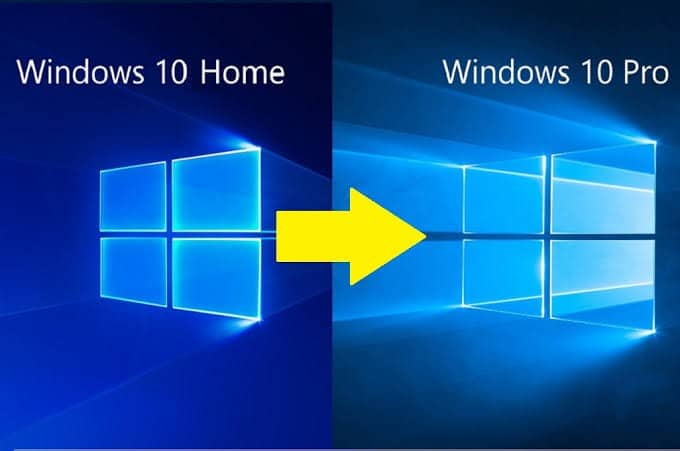
Windows 10 Home to Pro Upgrade CMD Method: Step-by-Step
Here’s the core process. The convert Windows Home to Pro CMD approach uses two main commands, one to change the edition and one to activate.
Step 1
You’ll know you’re running as Administrator when the window title shows “Administrator: Command Prompt.”
Open Command Prompt as Administrator
- Click the Start menu: Type “cmd” in the search bar.
- Right-click Command Prompt: Select “Run as administrator” from the context menu.
- Click Yes on the UAC prompt: This grants the necessary elevated permissions.
Step 2
Here’s the command:
“`
DISM /Online /Set-Edition:Professional /ProductKey:VK7JG-NPHTM-C97JM-9MPGT-3V66T /AcceptEula
“`
Let me break down what this Windows 10 Home to Pro CMD command actually does:
– **DISM**: Deployment Image Servicing and Management tool
– **/Online**: Targets your running Windows installation
– **/Set-Edition:Professional**: Specifies the upgrade target
– **/ProductKey:** The generic key that enables the edition change
– **/AcceptEula**: Automatically accepts the license agreement
Enter the Generic Pro Upgrade Key
- Type the following command exactly: This uses Microsoft’s generic upgrade key for Windows 10 Pro.
- Press Enter: Wait for confirmation that the key was installed successfully.
- Don’t close the window: You’ll need it for the next steps.
💡 Pro Tip
The generic key (VK7JG-NPHTM-C97JM-9MPGT-3V66T) is publicly provided by Microsoft specifically for edition upgrades. It’s not piracy: it simply unlocks the upgrade path. You’ll still need a legitimate Pro key for activation.
Step 3
During this phase, Windows is essentially converting your Home installation to Pro. It’s installing Pro-specific components and removing Home-edition limitations.
Wait for the Upgrade Process
- Monitor the progress percentage: The process typically takes 10-20 minutes.
- Don’t interrupt the process: Closing the window or restarting could cause issues.
- Watch for the restart prompt: Windows will ask to reboot when finished.
Step 4
Restart Your Computer
- Click Restart Now when prompted: Or type `shutdown /r /t 0` in Command Prompt.
- Wait for the restart cycle: Your PC may restart multiple times.
- Sign in normally: You’ll boot into Windows 10 Pro.
Step 5
Replace XXXXX-XXXXX-XXXXX-XXXXX-XXXXX with your actual product key:
“`
slmgr /ipk XXXXX-XXXXX-XXXXX-XXXXX-XXXXX
“`
Then activate:
“`
slmgr /ato
“`
A dialog box will confirm successful activation. You can verify by running `winver` again: it should now show “Windows 10 Pro.”
Activate Windows 10 Pro With Your Product Key
- Open Command Prompt as Administrator again: Same process as Step 1.
- Enter your genuine Pro product key: Using the command below.
- Run the activation command: This contacts Microsoft’s servers.
Alternative CMD Commands for Specific Situations
The primary upgrade Windows 10 Home to Pro command prompt method works for most users. But here are alternative approaches for specific scenarios.If DISM Command Fails
Sometimes the DISM method encounters errors. Try this alternative using changepk: “` changepk.exe /productkey VK7JG-NPHTM-C97JM-9MPGT-3V66T “` This launches the Windows edition upgrade wizard with the generic key pre-filled. It’s essentially automating what you’d do through Settings.Check Available Upgrade Paths
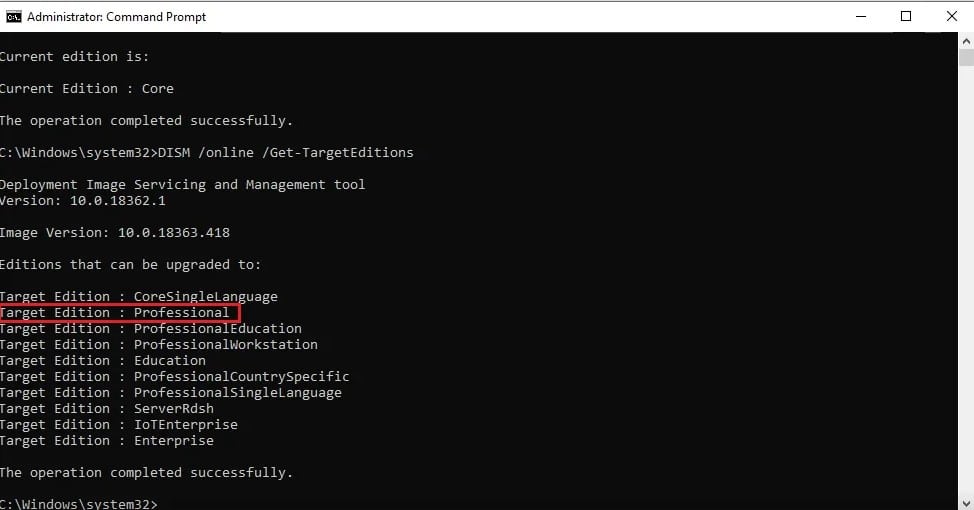
Want to see what editions you can upgrade to? Run this: “` DISM /Online /Get-TargetEditions “` This displays all editions your current installation can upgrade to. You should see “Professional” listed.💡 Pro Tip
If “Professional” doesn’t appear in the target editions list, your Windows installation might be corrupted or modified. Run `sfc /scannow` first to repair system files, then try the upgrade again.
For Enterprise Environments
System administrators upgrading multiple machines might prefer scripting. Here’s a PowerShell alternative: “`powershell Start-Process -FilePath “changepk.exe” -ArgumentList “/productkey VK7JG-NPHTM-C97JM-9MPGT-3V66T” -Wait “` This can be deployed via Group Policy or management tools for batch upgrades.Troubleshooting Common Upgrade Errors
Even with the correct Windows 10 Home to Pro CMD command, issues can occur. Here’s how to fix the most common problems.Error: “The product key entered does not match any of the Windows images”
This usually means you’re running an edition that can’t upgrade directly to Pro. Check your current edition with `winver`. If you’re running Windows 10 Home Single Language or Home N, you’ll need a key matching that variant (Pro or Pro N).Error: “Windows couldn’t be upgraded”
Try these fixes in order: 1. **Run Windows Update first**: Pending updates can block edition changes 2. **Temporarily disable antivirus**: Security software sometimes interferes 3. **Free up disk space**: Ensure at least 20GB free on your system drive 4. **Run the System File Checker**: `sfc /scannow` repairs corrupted filesError: “DISM failed. No operation was performed”
This often indicates the Windows image is already the target edition, or there’s a system component issue. Run this command to check your current edition: “` DISM /Online /Get-CurrentEdition “` If it already shows “Professional,” you just need to activate with your Pro key.⚠️ Important
Never download product keys from unofficial websites or key generators. These are typically stolen, volume license keys not authorized for individual use, or simply fake. They often get blacklisted, leaving you with an unactivated system.
What to Do After Your Upgrade
Congratulations, you’ve successfully completed the convert Windows Home to Pro CMD process. Now let’s configure your new features.Verify the Upgrade
Press **Windows + R**, type `winver`, and confirm you’re now running Windows 10 Pro. Also check activation status in Settings > Update & Security > Activation.Enable Pro-Exclusive Features
Here’s what you can now access: **BitLocker Drive Encryption:** – Right-click any drive in File Explorer – Select “Turn on BitLocker” – Follow the encryption wizard **Remote Desktop (as host):** – Go to Settings > System > Remote Desktop – Toggle “Enable Remote Desktop” on – Note your PC name for remote connections **Group Policy Editor:** – Press Windows + R – Type `gpedit.msc` – Access hundreds of advanced Windows settings **Hyper-V Virtualization:** – Open Control Panel > Programs > Turn Windows features on or off – Check “Hyper-V” and restart – Run virtual machines natively💡 Pro Tip
After upgrading, run Windows Update immediately. Pro editions sometimes have different cumulative updates than Home, and you want the latest security patches for your new configuration.
Getting a Valid Windows 10 Pro Product Key
The CMD method handles the edition change, but activation requires a legitimate product key. Here’s where pricing comes into play. Microsoft sells Windows 10 Pro directly for around $199. That’s steep, especially when resellers offer Windows 10 Pro keys for significantly less. Instant Key Software is an authorized Microsoft reseller and delivers Microsoft product keys by email at competitive prices. Every key is legitimate, instantly delivered via email, and backed by customer support. Beyond Windows licensing, we’re authorized resellers for the complete Microsoft ecosystem. If you’re also upgrading your productivity suite, consider Microsoft Office 2024 Professional Plus, the latest perpetual license with no subscription required. Running multiple devices? Protect your upgraded system and others with ESET MultiDevice security – 5 Device 1 Year. Security matters more on Pro editions since they’re often used in business environments.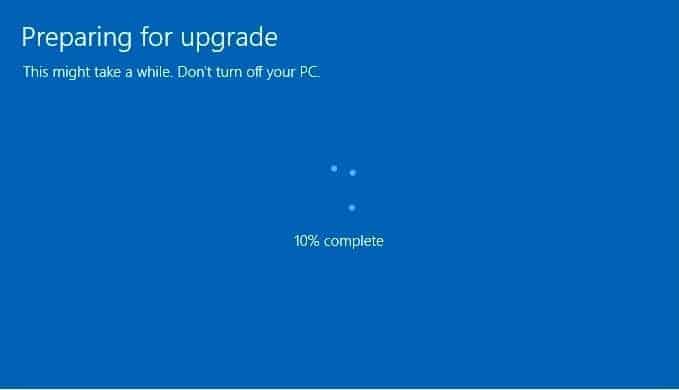
CMD Method vs. Settings Menu Upgrade
You might wonder why use command prompt when Windows has a built-in upgrade option in Settings. Here’s the comparison: **CMD Method Advantages:** – Works when Settings upgrade fails – Faster for experienced users – Scriptable for multiple machines – More control over the process – Bypasses some UI-related bugs **Settings Menu Advantages:** – More user-friendly – Visual progress tracking – Automatic restart handling – No command memorization needed For most technical users and system administrators, the Windows 10 Home to Pro upgrade CMD approach is simply more reliable. The Settings method sometimes hangs or fails silently: command prompt gives you clear success or error messages.Get Your Windows 10 Pro License Today
Retail license. Instant email delivery. Support included.
Buy Now →Yes, this method uses official Microsoft tools (DISM) and a Microsoft-published generic key. It’s the same process Windows uses internally when you upgrade through Settings , you’re just triggering it via command line instead of the GUI.
No, the in-place edition upgrade preserves all your files, applications, and settings. It’s not a clean installation : Windows simply unlocks Pro features on your existing system. However, backing up important data before any system change is always recommended.
The generic key (VK7JG-NPHTM-C97JM-9MPGT-3V66T) is a Microsoft-provided key that enables edition upgrades but doesn’t grant activation. Think of it as unlocking the door: you still need your own key (a retail or volume license) to actually “own” the room.
Microsoft doesn’t provide an official downgrade path from Pro to Home. If you need to revert, you’d have to perform a clean installation of Windows 10 Home using installation media. This would erase your current installation.
The same DISM command structure works for Windows 11 Home to Pro upgrades, but you’ll need a Windows 11 Pro product key for activation. The generic upgrade key differs between Windows versions, so verify you’re using the correct one.
Edition upgrades can appear stuck but are often still working in the background. Wait at least 30 minutes before assuming it’s frozen. If it genuinely fails, try rebooting and running `sfc /scannow` to repair system files before attempting again.
Products in this article


Windows 11 Professional 64-bit
Price range: 29.00 $ through 79.00 $
View Windows 11 Professional 64-bit
Digital delivery by email · Secure payment by card


Leave a Reply