

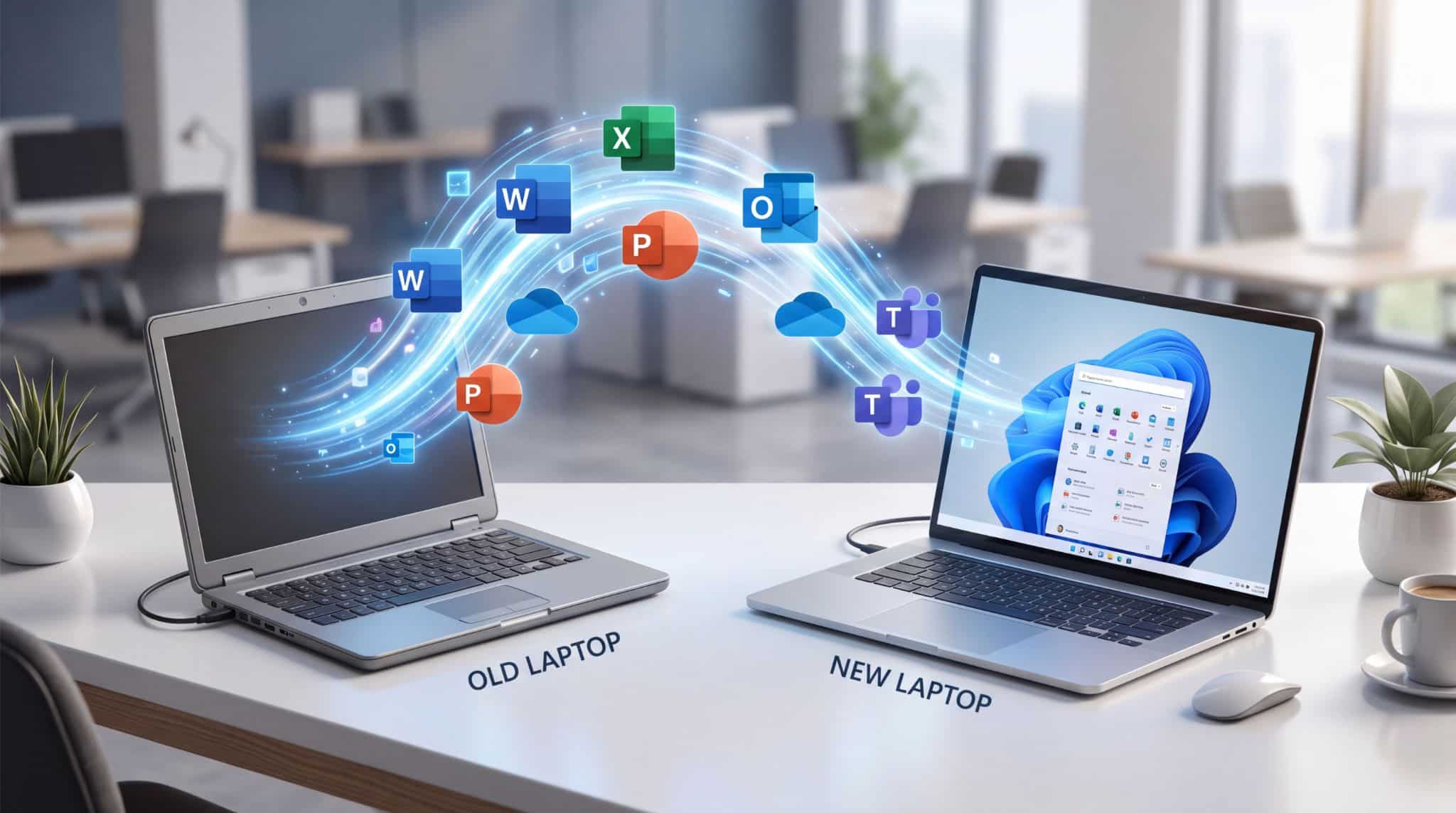
How to Transfer Microsoft 365 to a New Computer (Complete Guide)
Upgrading to a new laptop or desktop is exciting—but one of the first questions many users ask is: How do I move Microsoft 365 to my new computer? The good news is that Microsoft 365 is connected to your Microsoft account rather than permanently tied to one device. That means moving it to a new PC or Mac is usually straightforward.
In this guide, you’ll learn exactly how to transfer Microsoft 365 to a new computer without losing access to your apps, files, or subscription.
What Is Microsoft 365?
Microsoft 365 is a subscription-based productivity platform from Microsoft designed for individuals, students, and businesses. It offers premium versions of applications like Word, Excel, PowerPoint, and Outlook, along with collaboration tools like Teams.
In addition to desktop apps, Microsoft 365 also provides cloud storage through Microsoft OneDrive, allowing users to store, sync, and access files securely from multiple devices, including Windows PCs, Macs, tablets, and smartphones.
One of the biggest advantages of Microsoft 365 is that subscribers receive continuous software updates, security improvements, cloud-based collaboration features, and access to the latest tools without needing to purchase a new version every few years. This makes Microsoft 365 a flexible and powerful solution for modern work, study, communication, and file management.
Why transfer Office 365 subscription to new computer?
There can be several reasons behind the license transfer, and some of those are described below:
- Current computer crashed down or had a virus attack, leaving the system unhealthy and unfit for continued access.
- To transfer the license to other computers to allow other employees to access it efficiently.
- Switching operating systems from Windows to Mac or the other way around.
- Resetting or reinstalling the operating system on the same device due to some issues.
Prerequisites to arrange before you transfer Office 365 to new computer
Here are some requirements that you must arrange before you start to transfer Microsoft 365 to new computer for license activation:
Verify which license you own
Office 365 offers a variety of subscription plans, which include business, home, and personal licenses. With the personal subscription, you can activate the license on one computer only, and the home license supports up to 5 personal computers. Make sure you know which subscription you are using.
Must have a valid product key
A product key is crucial to activate the license on any device. Once you transfer the license, you’ll need it to activate the subscription.
Once you’ve the above two required aspects, move on further with the article to learn how to transfer Office 365 license to new computer.
Take a comprehensive Office 365 backup first
Many users have complained about losing their business and personal data while trying to move Microsoft 365 to new computer. This is probably because they didn’t understand the significance of saving a structured and complete data backup.
Before you begin with the subscription transfer, make sure you download a detailed backup of the Office 365 tenant. It will help you escape the possibilities of data loss during the process caused due to hardware crashes, power outages, or other reasons. Use a professional Office 365 backup tool that supports simplified backup of your tenant. Kernel Office 365 Backup and Restore helps you download a secure backup of the entire data from Office 365, including emails, contacts, calendars, notes, etc. Here are some efficient features of the tool as mentioned below:
- Save a quick backup of all the mailboxes to PST, PDF, EML, MSG, or other file formats.
- Save the entire data backup within the local or network-attached storage.
- Backup data from primary, archive, or shared mailboxes.
- Provides a Split PST feature to manage the large-sized mailboxes.
- Supports multiple instances running simultaneously without any data overlapping.
- Restore the Office 365 tenant using the existing backup stored within the OST or PST file.
How to transfer Office 365 to a new computer?
Let’s proceed to the process to move the license, which is divided into 3 steps as explained below:
Step 1: Deactivate Microsoft 365 from the old computer
To deactivate or end the subscription on the old PC, follow the given steps.
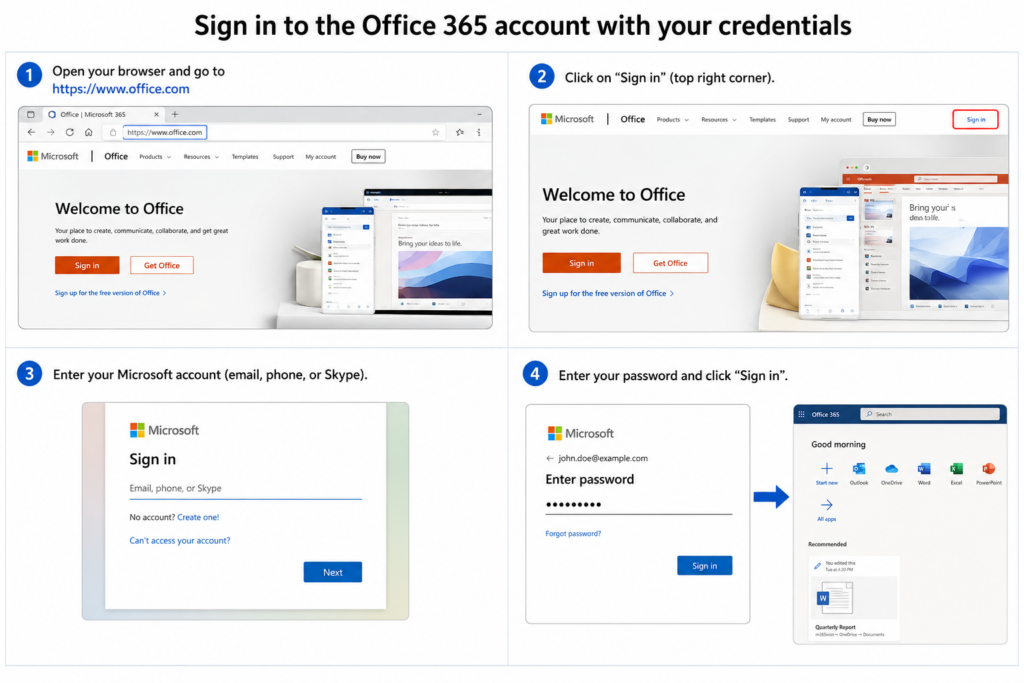
- Sign in to the Office 365 account with your credentials.
- Go to the Install section, click Install, and then Deactivate Install under the Installed section.
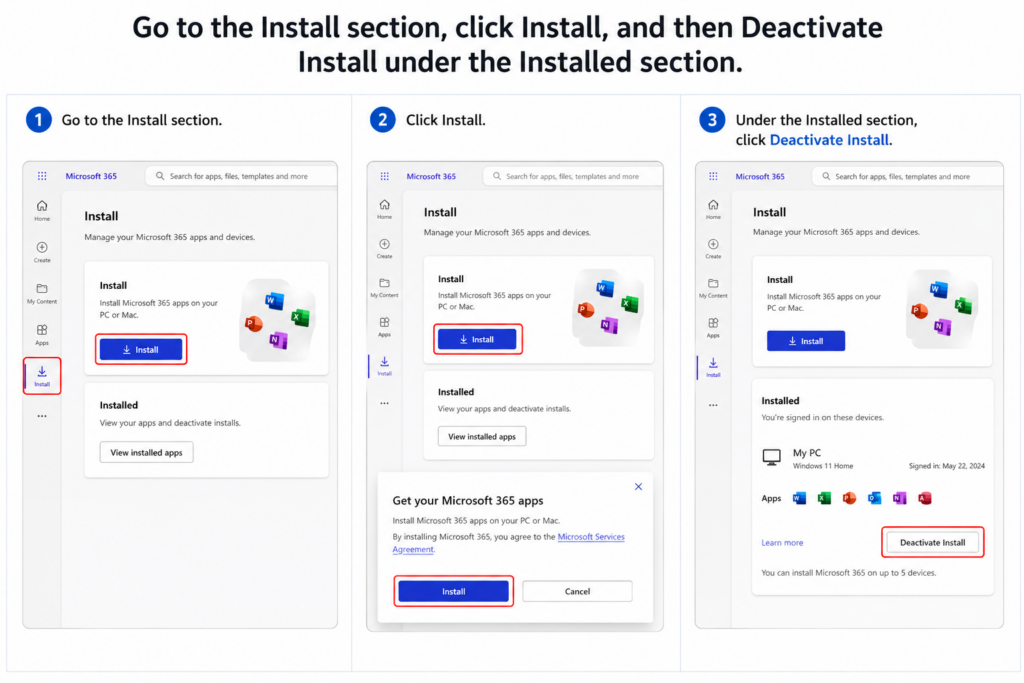
- Click the Deactivate button to confirm the removal of the subscription.
- Now, go to the Control Panel to uninstall Microsoft Office from your old computer.
Step 2: Install and activate Office 365 subscription on new computer
- Go to the Office 365 website within the browser on your new computer and log in to the Microsoft Store using your credentials.
- Go to the Install Information section, click on the Install button to get the setup file.
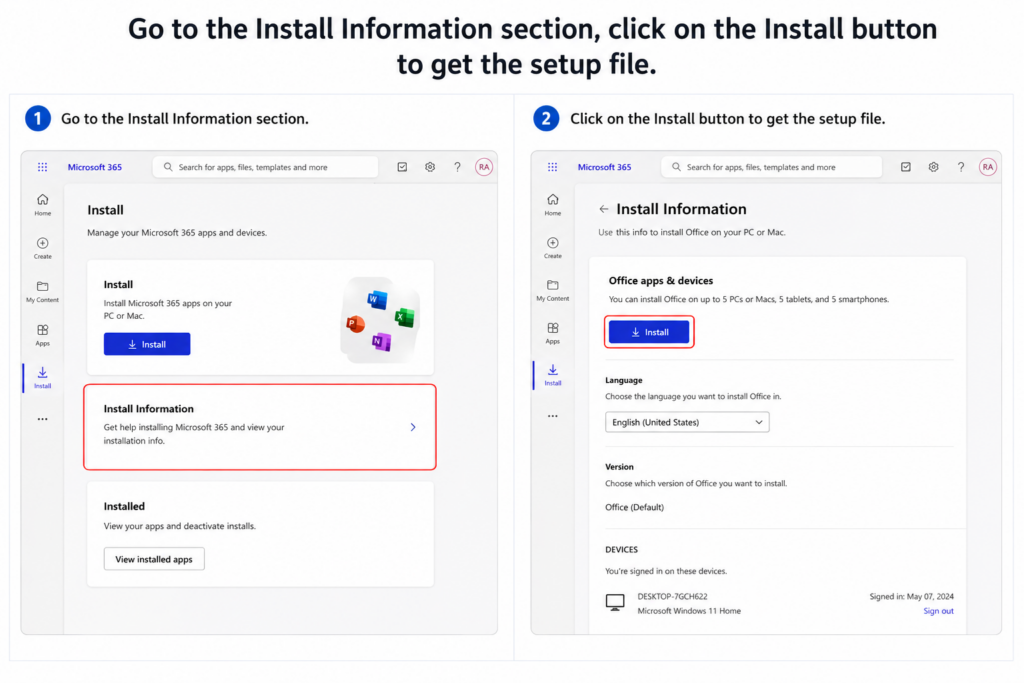
Note: Make sure to install the Microsoft Office version that is compatible with your new computer and the product key.Once the download is complete, click on the file to install it on your system.
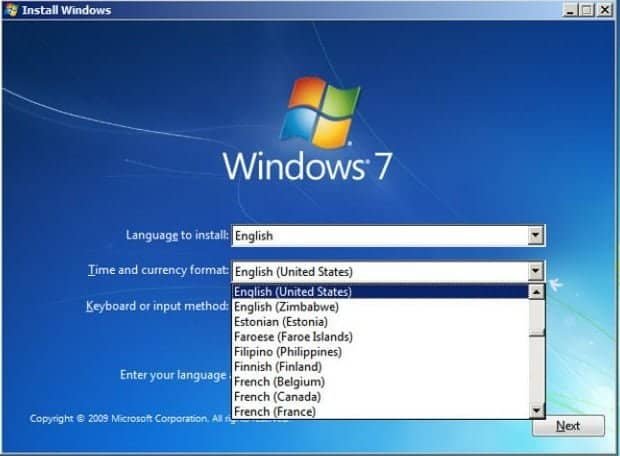
- Select Run then click Next > Next and in the end tap on Sign In.
- Verify your Office 365 account and follow the instructions to finish installing Microsoft 365 on your new machine.
Step 3: Confirm the transferred subscription on new device
Finally, you need to confirm the subscription by entering the product key to activate the license on your new device. If you have not saved the product key, visit the link, enter your account details, and click View Product Key, and copy the 25-character-long key.
Enter the product key to complete the subscription setup. This will validate the Microsoft 365 account for use again on your new computer.
Should You Uninstall Microsoft 365 From Your Old Computer?
It’s a good idea if:
- You sold the old computer
- You no longer use it
- You want to free up device sign-ins
For subscription users, Microsoft 365 can remain installed on multiple devices, but you may need to manage active sign-ins.
Common Problems and Fixes
1. No Install Button
Possible causes:
- Wrong Microsoft account
- Subscription expired
Solution: Check your subscription under your Microsoft account.
2. Activation Error
Try:
- Signing out and signing back in
- Checking internet connection
- Updating Windows
3. Old Device Still Showing
Remove it manually from your Microsoft account device list.
Final Thoughts
Transferring Microsoft 365 to a new computer is usually simple:
Sign in → Download → Install → Activate
Because your subscription is linked to your Microsoft account, you don’t usually need a product key or complicated activation steps.
If you’re upgrading to a new PC or Mac, Microsoft 365 makes the transition smooth while keeping your apps, settings, and cloud files accessible.
Need a license? Get your Microsoft 365 Business Premium at the best price — instant digital delivery.
Products in this article

Digital delivery by email · Secure payment by card, Apple Pay and Google Pay






Leave a Reply