

How to Cancel an Adobe Subscription: A Step-by-Step Guide
Are you thinking about canceling your Adobe subscription but unsure how to go about it?
Whether it’s because you’re not using Adobe products enough, want to save money, or are looking for other creative tools, the cancellation process is simple if you follow the right steps. In this guide, we’ll take you through every stage of canceling your Adobe subscription, explain any charges or penalties you might face, and clarify what happens after you complete the process. Let’s make sure this is a smooth experience for you!
In this article, we’ll show you how to cancel your Adobe subscription, talk about any possible charges, and explain what to expect after you cancel.
Reasons to Consider Canceling Your Adobe Subscription
There are several reasons why you might want to cancel your Adobe subscription.
Some of the most common include:
- High cost: Adobe’s services can be very expensive, especially for individuals or freelancers who don’t need the full Creative Cloud package. For a closer look, learn which Adobe CC plan to choose.
- No longer using Adobe products: If you’ve found alternative software that works for your needs, you may not need Adobe’s tools anymore.
- Limited use: If you only do creative work occasionally, paying for a monthly subscription may not be worth it.
- Switching to a different service: As new creative tools come out, some users find that other programs better meet their needs.
If any of these reasons apply to you, it’s best to cancel before your next billing date to avoid being charged unnecessarily.
Things to Keep in Mind Before Cancellation
Before you start the cancellation process, there are a few important points to consider:
- Early cancellation fee: If you are on an annual plan but pay monthly, Adobe may charge you a fee if you cancel before the end of your contract.
This is usually 50% of the amount you still owe. - Loss of access to apps and services: Cancellation means you will lose access to all Adobe apps and cloud storage unless you switch to a free plan.
- Cloud storage retention: After cancellation, you’ll have 30 days to download your files from Adobe’s cloud before they are deleted.
Now that you know what to expect, let’s move on to the steps.
How to Cancel an Adobe Subscription
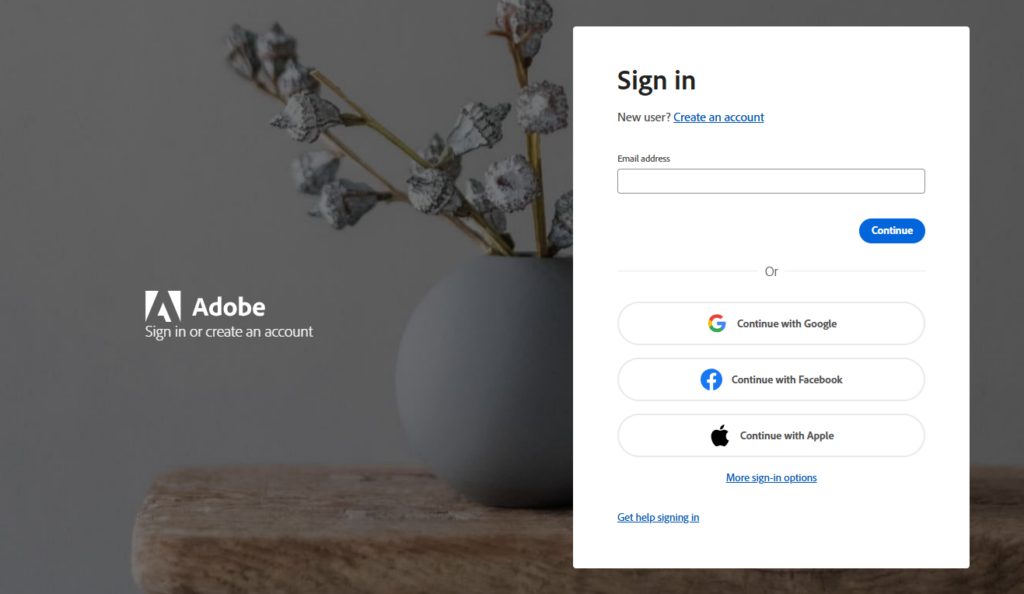
Step 1: Log into Your Adobe Account
- To begin, you need to sign in to your Adobe account.
- Go to the Adobe website and enter your email and password associated with your subscription.
Step 2: Access Your Account Settings
Once you are logged in, go to your account settings.
To do this:
- Click on your profile picture or icon in the top right corner of the Adobe homepage.
- From the dropdown menu, select “Account” or “Manage Account.”
- This will take you to your main account page where you can manage your subscription and other details.
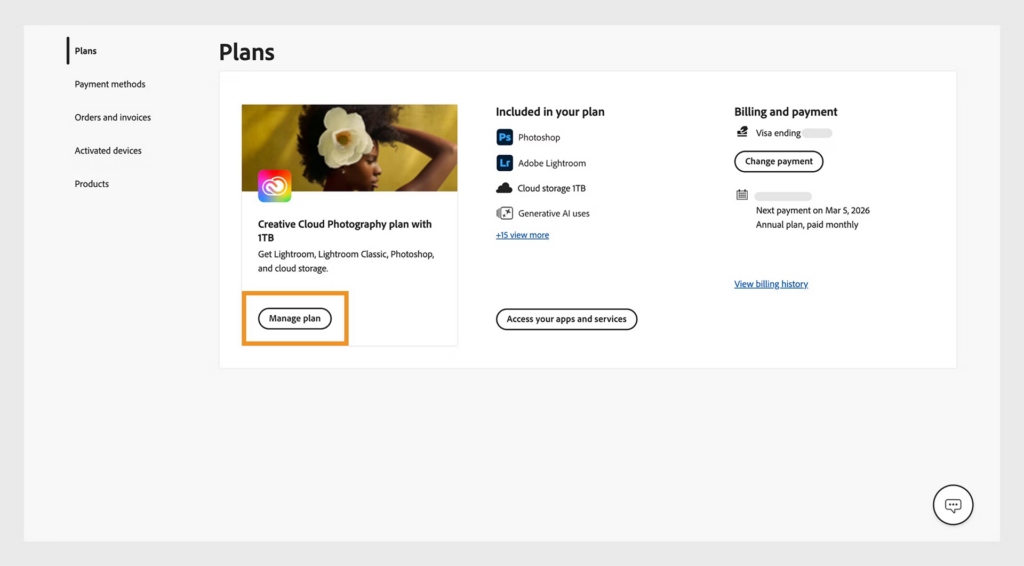
Step 3: Find Your Plan
In the Plans section, you will see the details of your current subscription, such as the plan you are on (e.g., Adobe Creative Cloud, Adobe Acrobat Pro, etc.).
- Click on “Manage Plan” next to the subscription you want to cancel.
Step 4: Choose to Cancel
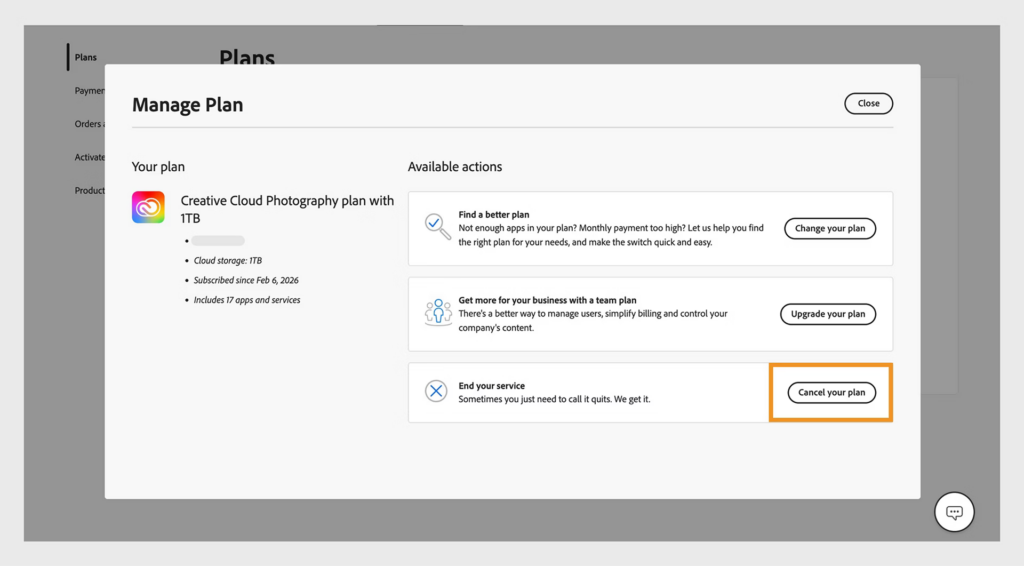
In the Manage Plan section, you should see the option to cancel your subscription.
- Look for a link or button that says “Cancel Plan” or “Cancel Subscription.“
- Click on it to begin the cancellation process.
Step 5: Provide a Reason for Canceling
Adobe will ask you to give a reason for canceling.
This is optional, but your feedback may help Adobe improve its services or offer better options in the future.
You can choose from the following reasons:
- Cost is too high
- Switching to a different service
- No longer need the product
- Other (you can specify your reason)
Once you select your reason, click “Continue.“
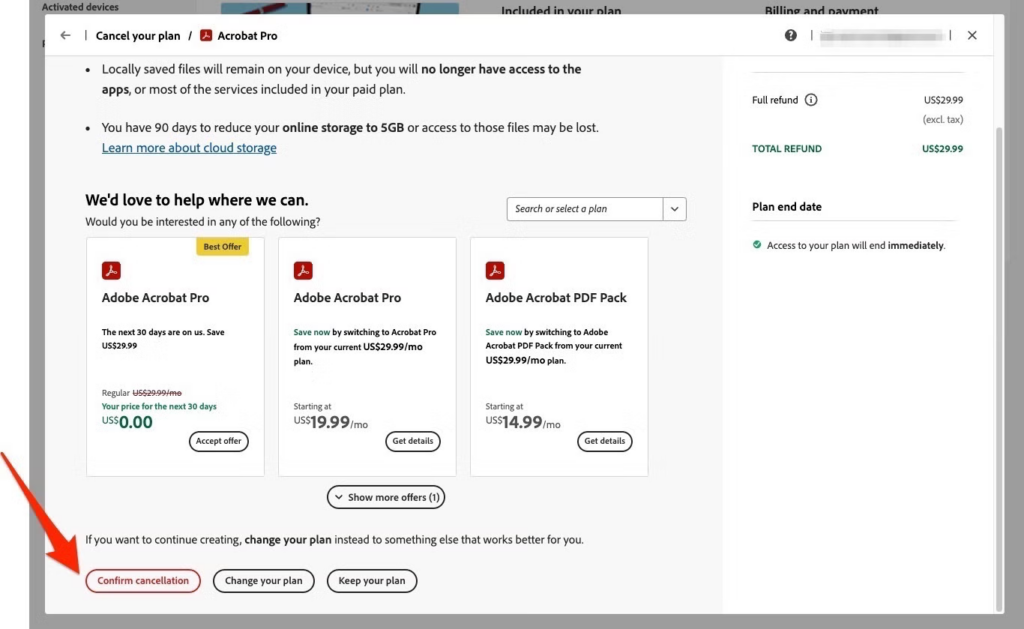
Step 6: Review Cancellation Details
Before you confirm, Adobe will show you a summary of any fees or remaining charges.
If you are on an annual plan and cancel early, you might see an early termination fee.
Make sure to carefully read this information so you don’t face any unexpected charges.
Step 7: Confirm Your Cancellation
After reviewing the details, confirm your cancellation by clicking “Cancel Plan” or “Confirm Cancellation.”
Adobe will send you a confirmation email to the address linked to your account, letting you know your subscription has been canceled successfully.
What Happens After You Cancel
Loss of Access to Adobe Apps
Once your subscription is canceled, you will no longer have access to all Adobe apps and services included in your plan.
If you’re on Adobe Creative Cloud, apps like Photoshop, Illustrator, InDesign, and Premiere Pro will no longer be available.
Cloud Storage Limitations
As part of your subscription, you probably had access to Adobe’s cloud storage.
After canceling, your storage space will drop from 100 GB (or whatever your plan allowed) to 2 GB. Adobe gives you 30 days to download anything stored in the cloud before it gets deleted.
Make sure to back up any important projects or files before the cancellation takes effect.
Potential Refunds
If you cancel within 14 days of starting a new subscription or renewal, you may be eligible for a full refund.
After 14 days, Adobe usually does not offer refunds, so timing your cancellation carefully is important if you want your money back.
Avoiding Future Charges
After successfully canceling your subscription, there are steps you can take to avoid future charges:
- Remove your payment methods: While Adobe won’t automatically charge you after cancellation, some people choose to remove their payment info for added peace of mind.
- Check for confirmation emails: Always make sure you receive a confirmation email after canceling to confirm the process was completed.
If you don’t, check your Adobe account to verify the cancellation.
Frequently Asked Questions
- Can I pause my Adobe subscription instead of canceling?
Adobe doesn’t offer a “pause” option for subscriptions. You’ll need to cancel and re-subscribe later. - Will I lose all my files after canceling?
You will retain access to your files stored locally on your computer. However, any files in Adobe’s cloud storage must be downloaded within 30 days of cancellation, or they will be deleted.
Need a license? Get your Adobe Creative Cloud All Apps at the best price — instant digital delivery.
Products in this article
Digital delivery by email · Secure payment by card, Apple Pay and Google Pay






Leave a Reply