


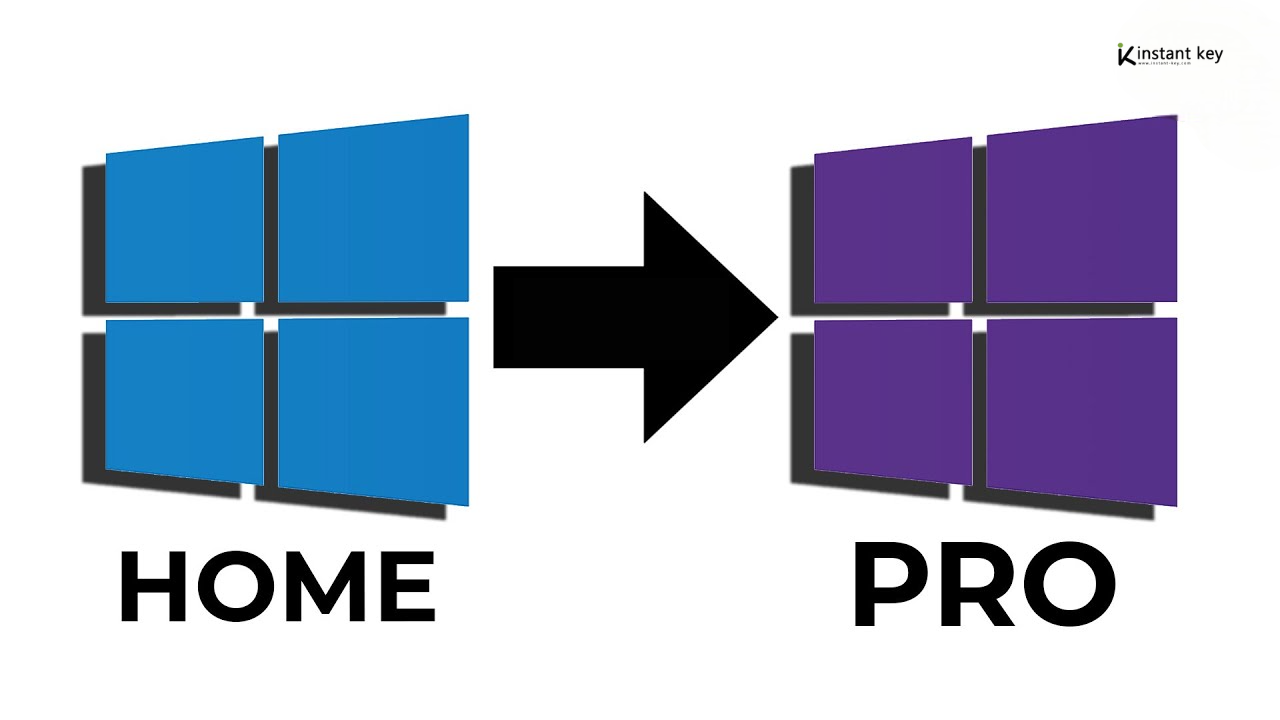
How to change Windows 10 Home to Windows 10 Pro using Cmd
If you want to switch from Windows 10 Home to Windows 10 Pro with the Command Prompt (CMD), do these things. This method starts the change with a usual product key. To finish up, you need a real Pro permit.
Upgrade from Windows 10 Home to Windows 10 Pro Using CMD
Step 1: Verify Windows Edition
Before starting the upgrade, ensure you’re currently on Windows 10 Home. You can do this by:
- Pressing Windows + R to open the Run dialog.
- Typing winver and pressing Enter. This will show your Windows edition and version.
Step 2: Open Command Prompt as Administrator
- Press the Windows key and type cmd.
- Right-click on Command Prompt from the search results and select Run as Administrator.

Step 3: Use a Generic Key to Start the Upgrade
In the command prompt window, type the following command:

This is the generic Windows 10 Pro key provided by Microsoft. It will initiate the upgrade but won’t activate Windows.
If the upgrade path isn’t available for your edition, the simplest option is to buy a Windows 11 Pro license key and activate Windows directly.
Press Enter.
Step 4: Upgrade Confirmation
In the Command Prompt window, type the following command to change the product key: changepk.exe /ProductKey VK7JG-NPHTM-C97JM-9MPGT-3V66T Press Enter.

Step 5: Restart Your Computer
After running the command, restart your PC to finalize the upgrade. You should now be running Windows 10 Pro, but it may not be activated yet.
Step 6: Purchase Windows 11 Pro Activation Key
The generic key used above starts the upgrade but does not activate Windows without a valid licence. To unlock all Pro features — including BitLocker, Remote Desktop, and Hyper-V — you need an activation key.
A one-time purchase, no subscription. Choose the option that fits your needs:
Need a Windows Pro key? Browse Windows 10 Pro and Windows 11 Pro keys on Instant Key — instant email delivery, activation instructions included with every order.
- Windows 10 Pro — one-time purchase for 1 PC
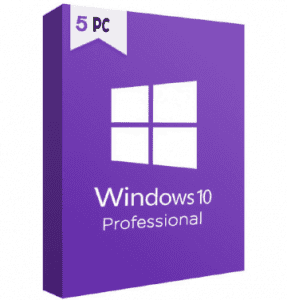
- Windows 10 Pro (5 PC) — ideal for multiple computers
- Windows 11 Pro — upgrade to the latest version
All keys include instant digital delivery, activation instructions, and 24/7 support if you need help.
To compare prices and delivery, see the cheap Windows 10 Pro product key options.
Step 7: Finalize Activation
Type the command to finalize the activation: slmgr /ato Press Enter.
Conclusion:
The process of upgrading windows 10 Home to pro using cmd is an easy one. You can utilize the features of pro version with a few commands including bitLocker, remote desktop and Hyper-V. Ensure that your product key is prepared for activation.
Products in this article

Digital delivery by email · Secure payment by card, Apple Pay and Google Pay






Leave a Reply